





Table of Contents Show
Creating a custom ringtone used to be a techy, complicated task. You’d either need a computer, audio editing software, or apps that were filled with ads and didn’t deliver. But now, with the AudioLab app on Android, you can easily create your own ringtone in minutes—no computer or advanced skills needed.
Whether you want your favorite song’s chorus as your ringtone or a funny sound clip to make your calls more fun, AudioLab makes it simple and smooth. In this article, we’ll walk you through the entire process of creating custom ringtones using AudioLab and setting them on your Android device.
What Is AudioLab?
AudioLab is a feature-rich audio editing app available on Android. It allows users to trim audio, mix tracks, change voice, remove noise, and much more—all directly from your phone.
One of its most popular features is the MP3 Cutter/Ringtone Maker, which lets you create ringtones from songs, recordings, or any sound file in just a few steps.
Key features of AudioLab include:
- Audio cutter and trimmer
- Voice recorder and editor
- Ringtone maker
- Audio converter
- Noise remover
- Vocal remover and stem separation
Let’s dive into how you can use it specifically for ringtone creation.
Step 1: Download and Install AudioLab
Start by heading to the Google Play Store and searching for AudioLab – Audio Editor Recorder & Ringtone Maker. Once installed, open the app.
You’ll be greeted with a clean interface with all major tools listed clearly. For this guide, we’ll focus on the “Trim & Cut” and “Ringtone Maker” options.
Step 2: Choose the Audio File You Want to Use
Tap on “Trim & Cut” or go straight to “Ringtone Maker” from the home screen.
You’ll be asked to pick an audio file. This could be:
- A downloaded song
- A voice note
- A recorded audio clip
- Any audio file stored on your device
Browse your storage and select the file you want to use.
Step 3: Trim the Audio
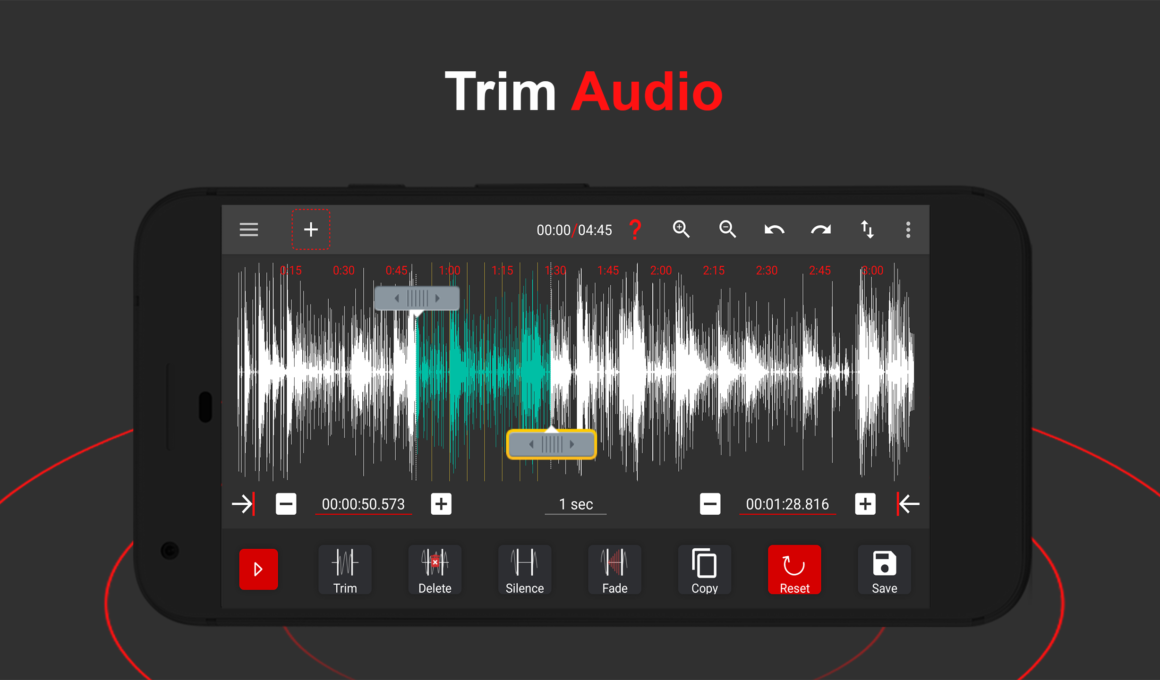
Once your audio is loaded, you’ll see a waveform display. Use the sliders to select the portion of the audio you want to use for your ringtone.
Most Android phones support ringtones that are around 30–40 seconds long. Aim to choose a catchy or distinct part of the audio, like a chorus or a punchline.
AudioLab allows you to:
- Zoom in on the waveform for precision
- Set start and end times manually
- Preview your selection before saving
Once you’re happy, tap the “Trim” or “Cut” button.
Step 4: Save the File as a Ringtone
After trimming, AudioLab will prompt you to save the new file. Choose “Save as Ringtone” to make things easier.
You can also rename the file (e.g., “Morning Alarm” or “Fav Song Ringtone”) so it’s easier to identify later.
The app will ask for permission to make changes to your system settings—allow it to continue.
Step 5: Set It as Your Ringtone
AudioLab will give you the option to set the audio as your default ringtone directly from the app. You can choose to apply it:
- As the default ringtone
- For a specific contact
- As a notification or alarm tone
If you skip this step, you can still go to:
Settings > Sound > Phone Ringtone, and select your custom sound from the list.
Why Use AudioLab for Ringtones?
There are plenty of apps that claim to make ringtones, but AudioLab stands out because it’s:
- Easy to use: The interface is beginner-friendly.
- Full of features: It’s not just for trimming—it’s a full audio suite.
- Reliable: No crashes, no heavy ads, no limitations.
- Free: Most ringtone features are available without paying.
If you ever want to go beyond ringtones and start editing podcasts, music, or videos, you already have the tools inside AudioLab.
Extra Tips
- Fade In/Out: Use the fade effect for smoother tone starts and endings.
- Remove Background Noise: Clean your audio using the noise remover before saving.
- Voice Clips: You can record funny or personal messages and set those as ringtones.
- Mix Sounds: Combine multiple sounds together for a more creative ringtone.
Final Thoughts
Creating your own ringtone is no longer a techy task. With AudioLab, it’s something anyone can do in under five minutes. Whether you’re personalising your phone, adding a fun twist to your alerts, or simply trying to get a unique sound, this app has got you covered.
If you haven’t yet, try AudioLab on Android today and explore how easy sound editing can be.
Let me know if you’d like a shorter version for another site, a variation for iOS (if supported in the future), or content for another keyword angle like “remove noise from audio” or “convert audio formats using AudioLab.”